
Look, we all know the Mac is incredible hardware, and the M-series has put the Mac on a level that is hard to beat. Whether you're on an Mac Mini, a MacBook Air, or a MacBook Pro, these M-series chips are absolute monsters.
But even now in 2026, macOS still has these weird little friction points. Things that Apple, in their absolute wisdom, just hasn't fixed yet.
It's been a while since I did a deep dive into my utility folder, but I've recently found a stack of apps that actually "complete" the OS for me. Some help with creative work, others help with my IT consulting business, but all of them share two things: they are either free (open source) or use a respectful, old-school "buy once" model.
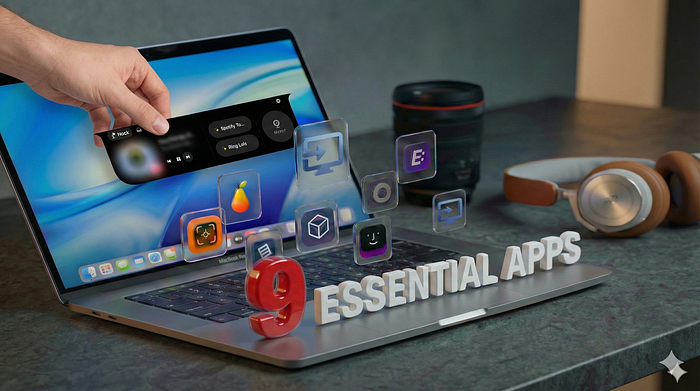
I won't share generic productivity lists here. No Notion, Evernote or Alfred. I think we all heard enough about them! Here are the actual gems I've been using to "fix" macOS.
Part I: The Interface Fixes
1. NotchNook
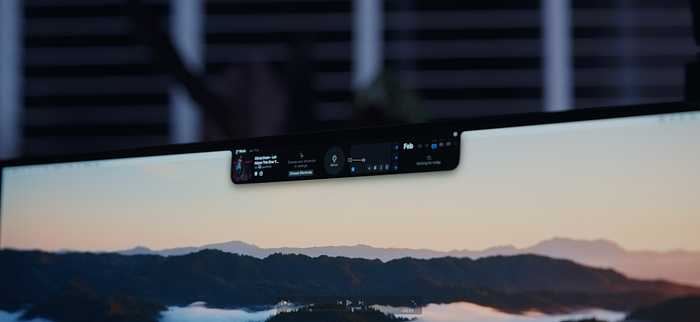
If you have a MacBook with a notch, you are going to love this. Apple gave us this dead space on the screen and basically expected us to ignore it.
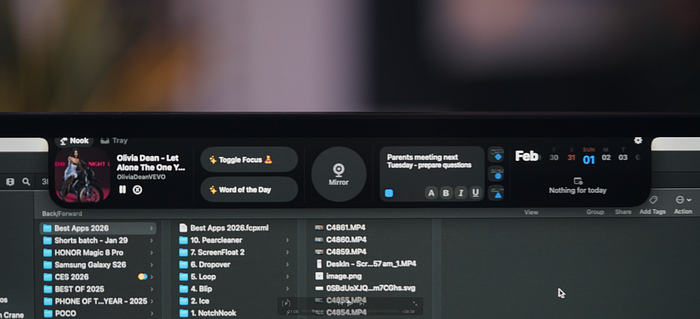
NotchNook does the opposite: it turns that dead space into a temporary shelf.
The workflow is simple. If I'm moving a file between full-screen apps, I don't do the Command-Tab dance anymore. I just drag the file into the notch, switch apps, and pull it back out.
It is so fluid it feels like a native feature, it feels like Apple designed it! Honestly, I think this is what the "Dynamic Island" should have been on the iPhone! And it certainly should be on my Macs now, from day one. It's not free, (you name a donation amount) but it has a perpetual license, which I appreciate.
2. Ice
Talking about space , my menu bar used to be a disaster.
Ice (no, not that ICE) is a free, open-source menu bar manager that is perfect if you like a calm, minimalist workspace. The killer feature here is "Hover to Reveal." You don't have to click anything; just move your cursor to the top of the screen, and your hidden icons slide out.
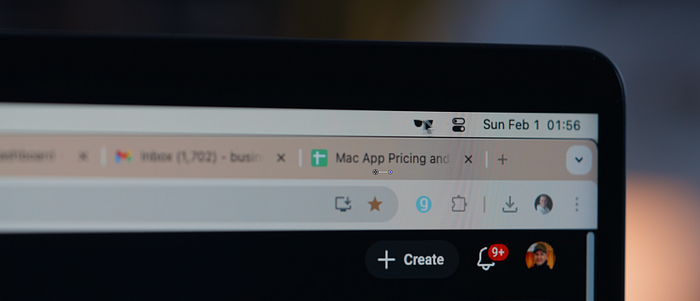
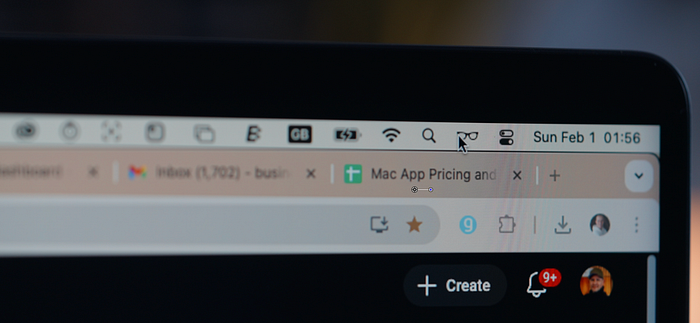
It keeps the desktop clean without making your tools hard to find. Plus, you can customize the bar with shadows, colors, and shapes. An absolute no-brainer for a free app.
3. DeskIn
This is how I handle heavy lifting when I'm away from the studio. DeskIn isn't your typical laggy remote desktop tool. It uses a "ZeroSync" engine to push 4K at 60FPS with 4:4:4 color accuracy.
That color accuracy number is huge for creatives. It means that, at a pinch, I can actually finish an edit on a video or grade footage from the comfort of my sofa at home, while my powerful Mac does the rendering back in the studio.
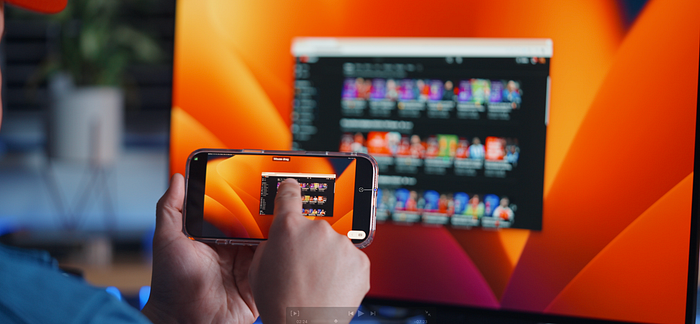
Even though I am focusing on Mac apps, this one handles file transfers between Mac, Windows, and Android seamlessly.
It's free to try, but if you need the pro features, I have details on my review video, if you'd like to find out more.
Part II: Data & Workflow Speed
4. Blip
AirDrop is great… until you need to send a 5GB file to a Windows PC or send anything to an Android device. Then it's usBeless.
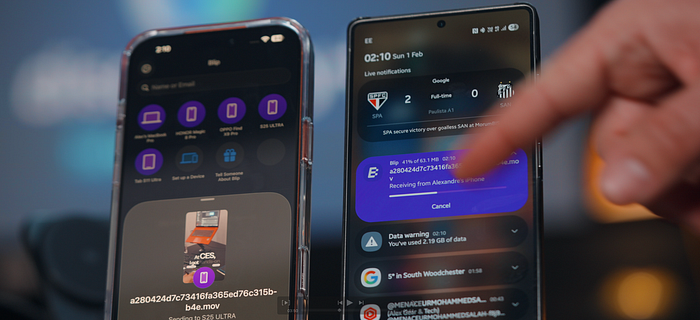
Blip is a completely free transfer app that brings the AirDrop experience to every device. It lives in your menu bar and stays out of your way. You just drag a file onto the target device, and it goes. In my testing, it is consistently as fast as (or faster than) native AirDrop for large files.
It can use your Wi-Fi locally, but another beauty of this app is that it can use the internet connection if you are on the road. Beautiful.
5. Loop
This one is for the visual thinkers (and the ADHD / OCD crowd).
I've tried every window manager out there, but memorizing dozens of keyboard shortcuts like Hyper-Key + Option + Right Arrow is a chore. Loop uses a simple but elegant radial menu.
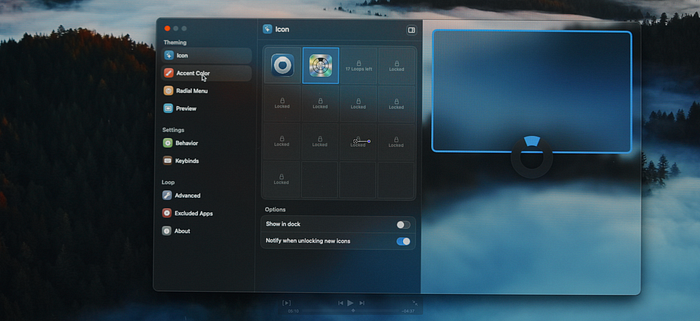
You hold (or double tap) a modifier key, a circle pops up around your mouse, and you just "nudge" your cursor in the direction you want the window to go. It relies on muscle memory rather than keyboard chords. It's incredibly satisfying and totally free.
6. Dropover
Dropover saves me a ton of time when I'm researching or mood-boarding.
Usually, if you want to gather images from five different websites, you have to save them to the desktop or a folder, one by one. With Dropover, you just "shake" your cursor. It creates a temporary floating shelf where you can stack files from different sources.
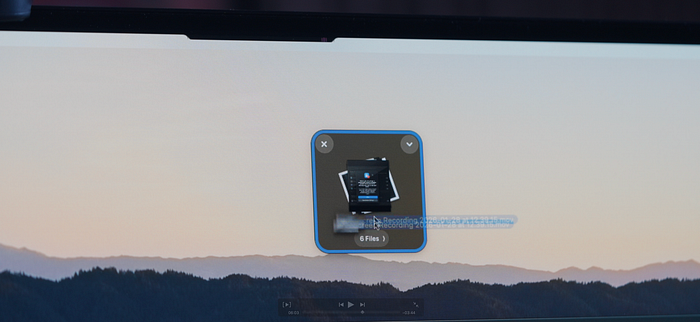
Once you have everything, you can drag the whole stack into Photoshop or an email at once. It's a feature I find myself wishing Finder had built-in.
Part III: Browsing & Memory
7. ScreenFloat 2
If you take a lot of screenshots, this is a must-have. It changes screenshots from "files on your desktop" to "working memory."
When you take a shot with ScreenFloat 2, it keeps the image floating above all your other windows. This is a lifesaver when you are referencing a serial number, a bit of code, or design specs while typing in another app.
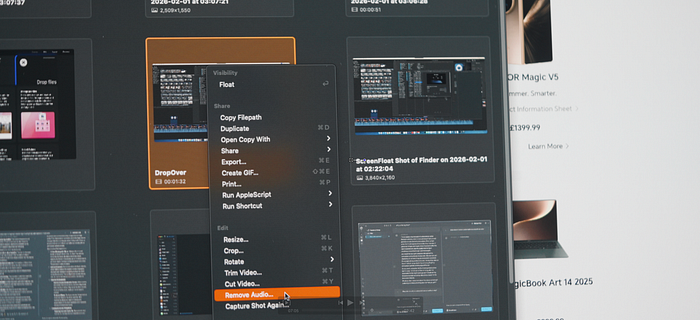
It also has built-in OCR (Optical Character Recognition), so you can grab text out of an image instantly, or redact sensitive info before sending a screenshot on WhatsApp. It's a paid app, but it's a one-time purchase and as far as time-saving is concerned, worth every penny.
8. Msty
I came across Msty while stress-testing Mac Minis, and it has become my go-to for local AI work.
If you want to stay away from cloud AI for privacy reasons, Msty lets you run LLMs (like Llama 4) locally on your Mac's Neural Engine. A cool feature is the "Split View," where you can ask the same prompt to two different models side-by-side to compare their logic, or use the built-in interface to compare model pricing.
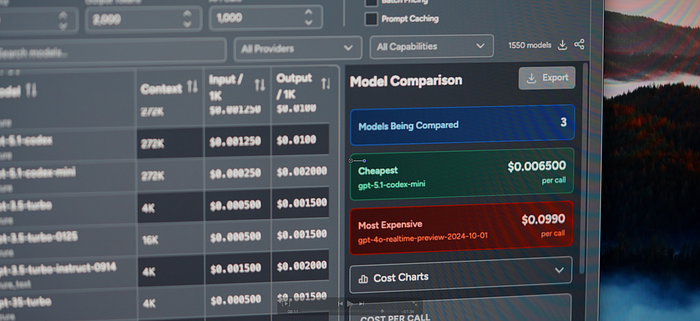
It's very user-friendly, perfect if you want to dip your toes into local AI without using the command line.
9. Pearcleaner
We'll end with some basic hygiene.
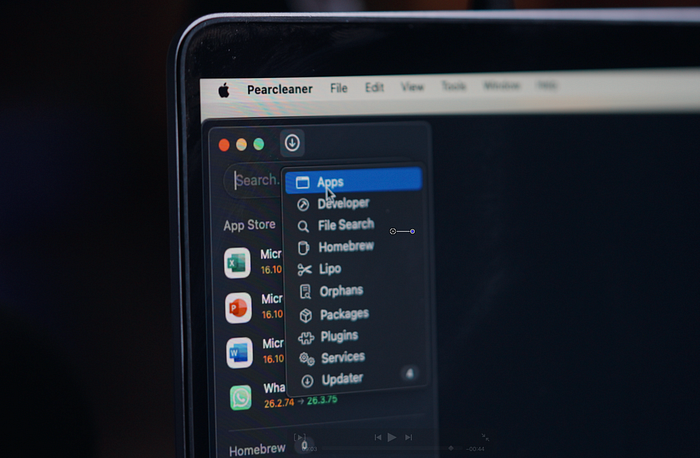
When you delete an app on macOS, it usually leaves a trail of "junk" files. Pesky caches, containers, and preferences, all clogging up your library. Windows apps are the same with dodgy registry entries left behind.
There are plenty of expensive "Mac Cleaner" suites that address this, but Pearcleaner is a tiny, open-source alternative.
It has a "Sentinel" mode that watches your Trash. When you delete an app normally, Pearcleaner pops up and asks if you want to wipe the leftovers, too. It's clean, fast, free, and respects your intelligence.
Final words
None of these apps are life-changing on their own. But collectively? They remove enough friction that using the Mac just feels a lot smoother.
If you want to check out the video version of this breakdown with demos of the apps in action, you can watch it here.